
What Is MCP? How AI Connects to WordPress and Business Tools
Quick summary
- MCP stands for Model Context Protocol. It gives AI apps a common way to connect to other tools.
- A WordPress connection can help an AI assistant read posts and save drafts, if the connector allows it.
- Business uses include finding documents, checking calendars and looking up customer records.
- You still control access and should review important changes before they go live.
You ask an AI assistant to write a blog post. It gives you the text, but you still need to copy it into WordPress, add the details and save it. What if the assistant could handle those steps through an MCP connection you approved?
This is where MCP can help. In this guide, you will learn what MCP is, how it connects AI to WordPress and business tools, and what to check before using it.
What is MCP in simple terms?
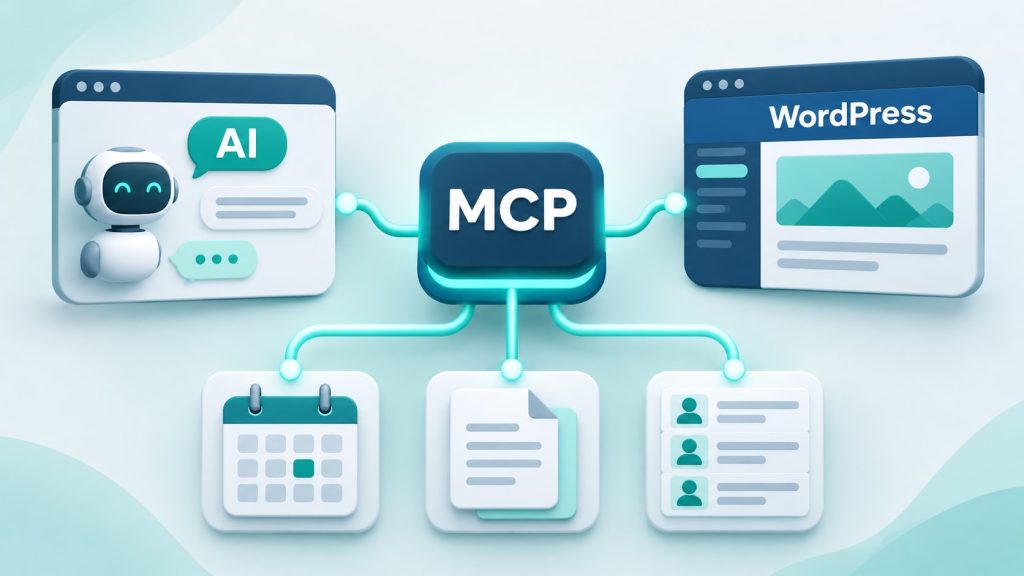
MCP means Model Context Protocol. It is a shared standard that helps an AI app connect to other tools and information, such as your website, files or business records.
- A shared language: the AI app can ask a connected tool what it can do, then request a task.
- Access to information: a connection can help the app read data that you allow it to use.
- Support for actions: some connections can save changes, such as creating a WordPress draft.
MCP is not an AI model. The AI writes the content. The connection lets the app use the tools and information it needs. Learn more in the official MCP introduction.
How does MCP work?
There are three main parts:
- Host: the AI application you use.
- Client: the part inside that app that connects to an MCP server.
- Server: the software that offers tools or information from another system.
For example, the app might ask a server for its available tools. The server could offer a tool to find posts and another to create a draft. The app can then call a supported tool and receive its result.
Servers can also provide resources, which supply information, and prompts, which act as reusable templates. Not every connection offers all three. The MCP architecture guide explains these parts in more detail.
How MCP connects AI to WordPress
A WordPress connector lets an AI app use selected features on your site. What it can do depends on its tools and permissions. For example, it may let the assistant:
- Read posts and find useful information.
- Create drafts for you to review.
- Choose categories for a post.
- Add images when image uploads are supported.
The WordPress MCP Adapter is one option for developers. It makes supported WordPress actions available through MCP. Other services offer their own connectors, so setup and features can vary.
A connection does not unlock every WordPress feature. For example, a tool might create posts but have no way to change your theme or edit a checkout page.
Example: saving a blog post as a draft
Imagine you run a small web design business. You could ask:
Write a simple guide to website backups. Check my existing posts for useful links, add an SEO description and save the new post as a draft.
With the right connector, the assistant could follow this workflow:
- Read recent posts to understand the topic and find useful links.
- Write the article and add its SEO details.
- Save the post as a draft in WordPress.
- Add a featured image if the connection supports uploads.
- Share the saved draft so you can review it.
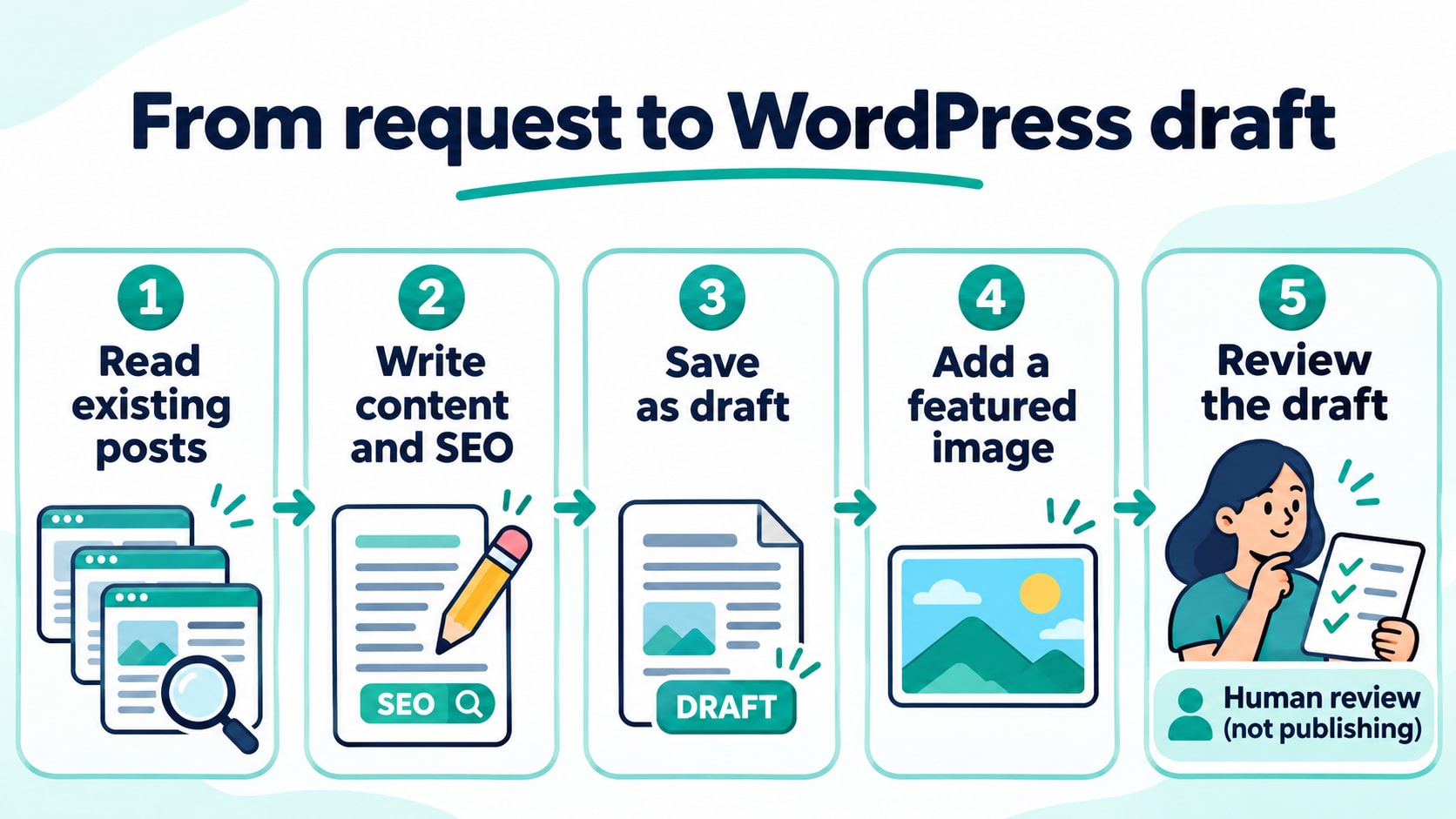
This is an example workflow, not a feature list for every MCP server. Image generation, SEO fields and publishing controls depend on the tools available.
You would still check the facts, links and layout. If you are also choosing how to build your pages, see our Elementor vs Gutenberg guide. The editor handles page design, while an MCP connector handles the actions it exposes.
Using MCP with business tools
The same idea can support other everyday tasks. Each service needs a compatible connection and suitable account access.
| Tool type | Example request | What to check |
|---|---|---|
| Document storage | Find the latest project brief and summarise it. | Can the connection access the right folder? |
| Calendar | Show my free times for a meeting. | Does it have read access to the correct calendar? |
| Customer records | Find the notes for this customer. | Is the customer record correct and access appropriate? |
| Project management | Create a task from these meeting notes. | Are the project, owner and due date right? |
These are possible uses, not promises that every product supports them. A read-only connection can help you find information, but it cannot save changes.
Does MCP replace an API?
No. MCP can work with an API. They have different roles:
- API: an interface that lets software work with another service.
- MCP: a common way for an AI app to discover and call a connector’s tools.
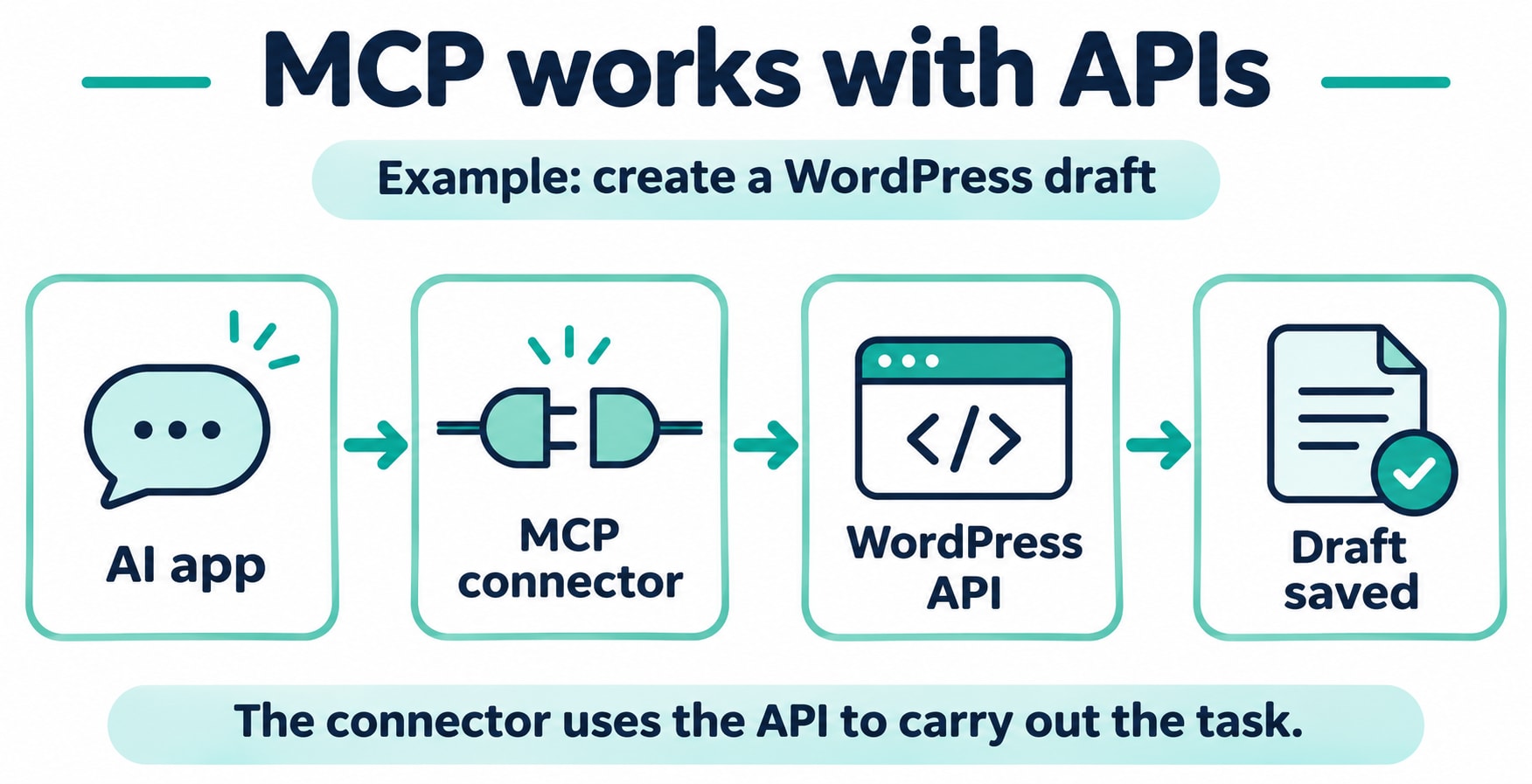
- MCP connector: may use the service’s API behind the scenes to carry out a task.
Example: creating a WordPress draft
- The AI app requests a new draft through MCP.
- The connector uses the WordPress API to send the request.
- WordPress saves the draft and returns the result.
- You review the draft before publishing.
This is one possible setup. The exact steps depend on the connector and its permissions.
When should you use each approach?
- Fixed, repeated task: an existing automation may be enough, such as copying each new order into a spreadsheet.
- Tasks guided by your request: consider MCP when you want an AI assistant to choose among the connector’s supported actions.
What should you check before connecting?
Start with a small task and give the connection only the access it needs. For a blog workflow, reading posts and saving drafts may be enough.
- Check the provider: understand who runs the server and which data it can receive.
- Check permissions: separate reading information from changing or deleting it.
- Keep a review step: inspect posts before publishing and messages before sending.
- Protect account details: use the supported sign-in process rather than pasting passwords into chat.
- Verify the result: open the saved item and confirm its content, destination and status.
A connection does not make every AI answer correct. The assistant can misunderstand a request, and a tool can return an error. Treat text found inside documents or web pages as content to assess, not permission to perform unrelated actions.
Frequently asked questions
Do I need coding skills to use MCP?
Not always. Some services provide ready-made connections. Building a custom server or adding unsupported business actions usually needs development work.
Can an AI assistant publish a WordPress post?
Only if the connector offers publishing and the account has the required permission. Ask for draft status when you want to review the article first.
Does connecting one tool give AI access to everything?
No. Access depends on the connected server, account permissions and app controls. Review those settings rather than assuming that a connection is either fully open or fully restricted.
Start with one useful task
For a WordPress site, a good first test is simple: ask the assistant to find a relevant existing article and save a short new draft. Open that draft yourself and check the result.
Once that works, you can decide whether images, SEO details or other business tools belong in the same workflow. Build up from a task you can easily review.