
Why Your WordPress Website Is Slow: Common Causes and Fixes
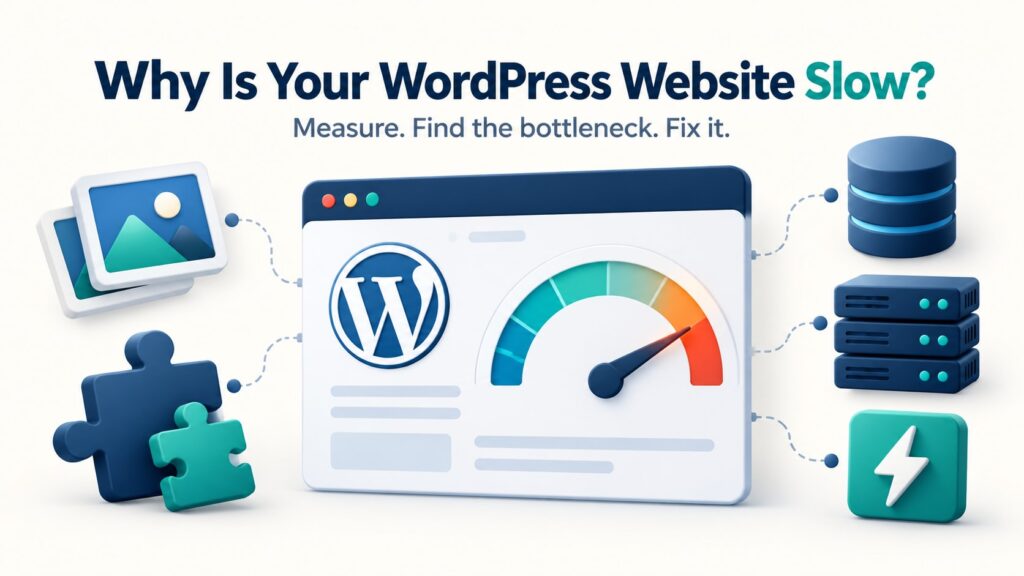
Quick summary
- Check hosting: Slow or limited server resources can affect the whole website.
- Check plugins and theme: Heavy or poorly coded plugins can add extra work to every page.
- Optimise images: Large images can make pages take much longer to load.
- Check the database: Clean old data and review slow queries. Database indexes can help specific queries, but they should be added based on the actual table and query structure.
- Use caching: Caching and a CDN can reduce the amount of work your server has to do.
- Find the real bottleneck: Tools such as Query Monitor can help identify slow database queries and other WordPress problems.
A slow WordPress website can make visitors leave, reduce conversions, and make the site harder to manage. The good news is that you can usually find the cause by checking a few common areas.
1. Check your WordPress website hosting and server
Your hosting server is one of the first things to check when a WordPress website is slow.
- Low server resources can make pages respond slowly.
- Too many websites on the same server can affect performance.
- A slow database server can make WordPress admin and front-end pages slower.
- Traffic spikes can use more CPU and memory than usual.
- Slow server response time can affect every page on the website.
If the website is slow at different times of the day, check server CPU, memory, PHP workers, storage, and server response time before changing lots of WordPress settings.
2. Review plugins and your WordPress theme
Plugins add useful features, but every plugin can also add PHP code, database queries, scripts, or other requests.
- Remove plugins you no longer use.
- Keep active plugins updated.
- Avoid using several plugins that do the same job.
- Check whether a recently installed plugin made the website slower.
- Review heavy page builder, security, backup, analytics, and search plugins carefully.
- Test the website with unnecessary plugins disabled on a staging site first.
The same applies to the theme. A theme with too many features, scripts, or database calls can increase page load time.
3. Optimise images on your WordPress website
Large images are a common reason for slow pages, especially on websites with many product images, blog images, or banners.
- Resize images to the size they actually need to be displayed.
- Compress images before or during upload.
- Use modern formats such as WebP where suitable.
- Avoid uploading a very large image when a smaller version is enough.
- Use lazy loading for images that are below the first screen where appropriate.
Image optimisation can reduce page weight without changing the visible content of the page.
4. Clean and optimise the WordPress database
WordPress stores posts, pages, settings, revisions, plugin data, orders, logs, and other information in the database. Over time, some websites collect a lot of unnecessary data.
- Remove old post revisions when they are no longer needed.
- Review expired transients and temporary data.
- Remove unused plugin data carefully.
- Check large database tables and tables created by old plugins.
- Review slow database queries instead of changing database settings blindly.
- Add database indexes only when the actual query and table structure show that an index will help.
Database indexes can make specific searches much faster, but adding indexes everywhere is not a good general speed fix. Extra indexes also have a cost because the database has more work to do when data is written or updated.
5. Use caching and a CDN
Caching can stop WordPress from rebuilding the same page for every visitor. A CDN can also serve static files from locations closer to visitors.
- Use page caching where it is suitable for your website.
- Cache static files such as CSS, JavaScript, and images.
- Use browser caching with sensible expiry settings.
- Consider a CDN if your visitors are spread across different locations.
- Clear the cache after major website changes when needed.
Be careful with caching on websites that have shopping carts, logged-in users, personalised content, or other dynamic areas. Those parts may need different cache rules.
6. Find slow database queries with Query Monitor
If the website is still slow, do not guess. Find out what WordPress is actually doing.
Query Monitor is a useful WordPress debugging plugin that can help you inspect database queries and other technical information.
- Look for slow database queries.
- Check which plugin or theme is responsible for a query.
- Review the number of database queries on a page.
- Look for PHP errors and warnings.
- Check HTTP API requests and other slow operations.
This can help you identify the actual source of a performance problem instead of making random changes.
How to speed up a WordPress website
A good troubleshooting process is more useful than changing everything at once.
- Start by checking server response time and hosting resources.
- Check plugins and the active theme.
- Check large images and page size.
- Review database size and slow queries.
- Check caching and CDN settings.
- Use Query Monitor when you need more detailed information.
Final thoughts
There is no single setting that makes every WordPress website fast. The cause could be hosting, plugins, images, database queries, caching, or a combination of several problems.
The best approach is to measure the problem first, make one change at a time, and test the result. This makes it easier to find the real cause and avoid changes that create new problems.